
Introducing Allotments: A New Way to Track Color Costs in SalonScale
.svg)
%20(1).png)
SUBSCRIBE TO THE SALONTEA MONTHLY NEWSLETTER
Already price your color services using allotments? You can now build that pricing method directly into SalonScale.
Our new Allotments feature lets you set a product budget for each service by weight or cost. From there, SalonScale automatically checks every bowl mixed for that service against the allotment.
If a bowl stays within the allotment, there’s nothing extra to charge. If it goes over, SalonScale shows the additional charge, bowl by bowl, so your stylist knows exactly what needs to be added on top of the service price.
How Allotments Work
Allotments are set up service by service, so you can choose an amount that makes sense for each color service.
You can set your allotment in one of two ways:
- By weight: Choose how many grams or ounces of color are included.
- By cost: Choose the dollar amount of color included.
Once it’s set, your stylists can continue tracking their formulas in SalonScale as usual.
As each bowl is mixed, SalonScale still shows the total color used and total color cost, but now you’ll also see whether the formula went over the service’s allotment.
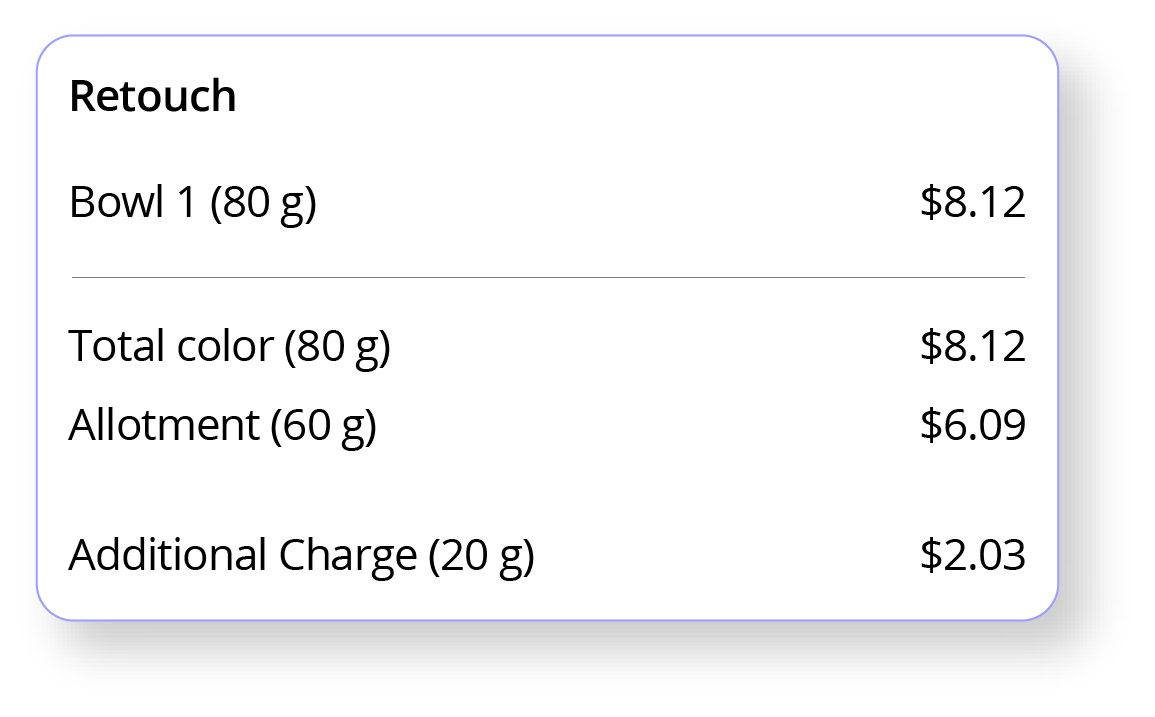
If it does, SalonScale breaks down the additional charge bowl by bowl, giving you a clear total to add on top of the service price. If the formula stays within the allotment, there’s no additional charge.
Why use Allotments in SalonScale?
Allotment pricing isn’t new. What’s new is being able to track it directly alongside your actual color usage.
Instead of relying on your team to remember how much product is included or estimate when they’ve gone over, SalonScale does the math as they track their formulas.
That means you can keep the allotment pricing model your salon already uses while getting a clearer picture of what’s actually happening at the backbar.
How to set up Allotments
First, make sure your Services are set up in SalonScale. Then, head to Settings → General Settings in your Business Centre and toggle Allotments on.
Next, head to Services, select the service you want to edit, choose whether you want to set your allotment by weight or cost, enter the amount and update your service. Repeat for each service you want to use Allotments with.
And because product costs change, it’s a good idea to review your allotments regularly to make sure they still reflect what your salon is paying for color.
Keep your pricing. Get more visibility.
If allotment pricing already works for your salon, you don’t need to change your pricing model to start using SalonScale.
Now, you can keep the way you price while getting a much clearer picture of what’s happening at your backbar, what’s included in your service price, and what needs to be charged when your team goes over.
Not using SalonScale yet? Book a free SalonScale demo.

.svg)
.svg)


.svg)


